
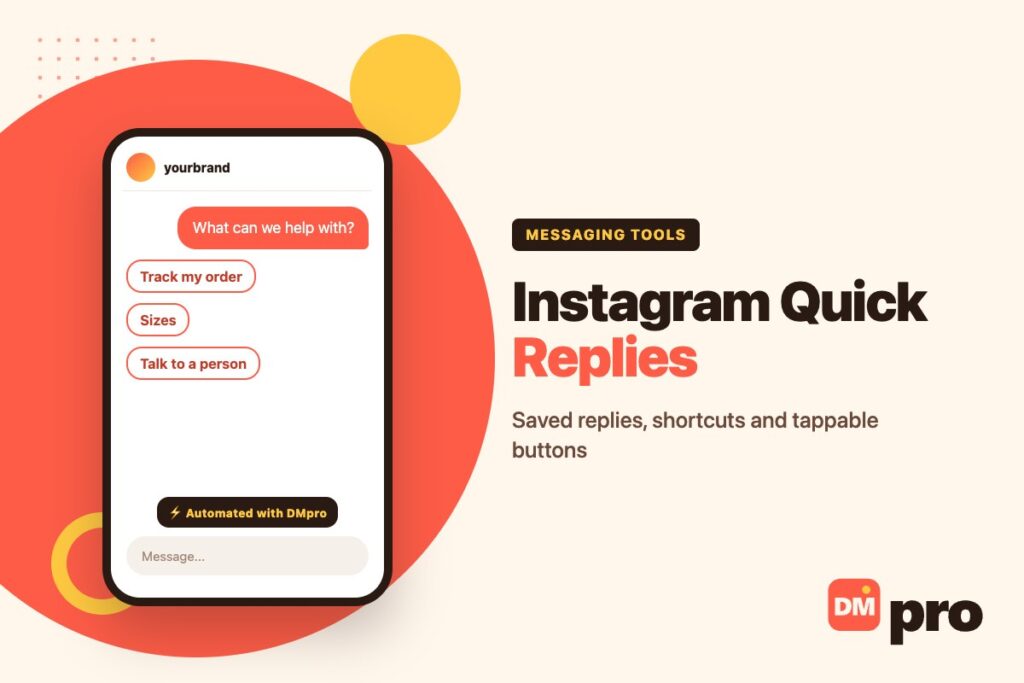
Answer the same question in your DMs twenty times a week and you start looking for a way to stop typing it. Instagram quick replies are that way – but the name covers three different features, and most confusion about them comes from mixing them up.
One is a saved message you insert yourself with a shortcut. One is a saved reply that Meta Business Suite suggests to you in the right conversation. The third is a row of buttons a customer taps, sent by an app through Instagram’s Messaging API.
This guide separates the three, shows how to set up and use each, and ends with replies worth saving and the fixes for quick replies that will not show up. It sits within the wider picture of DM marketing.
Key Takeaways
Three Different Things Called Quick Replies
When someone says Instagram quick replies, they usually mean the in-app feature: a message saved in your account settings with a short keyword, which you pull into a chat instead of typing it out. It is a typing shortcut, not an automation – the message goes nowhere until you send it.
Meta Business Suite has its own saved replies in its Inbox, which covers Messenger, Instagram and WhatsApp in one place. On top of those, its Inbox suggestions can offer a saved reply when it looks relevant to the conversation you have open.
Developers mean something else again. In Instagram’s Messaging API, quick replies are tappable buttons attached to a message, so the customer answers with one tap. These are what chatbots use, and they are the only kind the customer ever sees as quick replies.

Setting Up Saved Replies in the Instagram App
Instagram’s Help Centre does not currently have an article on this feature – searches there for quick replies and saved replies return nothing about it – and the menu has been renamed more than once since it launched. The route below is the general shape; the labels on your phone may differ slightly.
Use a professional account
The feature has been tied to business profiles since launch. If you cannot find it at all, check your account type before anything else.
Open your settings
From your profile, tap the menu in the top-right corner and open your settings.
Find the business tools section
It has appeared as Business settings, as Business, and more recently as Business tools and controls. Inside, look for Saved replies – earlier versions called it Quick replies.
Add a reply and a shortcut
Tap the plus button, write the full message, then give it a short keyword. Launch-era coverage reported a 15-character cap on shortcuts, so keep them brief either way.
Save it and test it
Open any chat and try the shortcut before you rely on it with a customer.
Using a Saved Reply in a Chat
There are two ways in. Type your shortcut in the message field and a prompt appears offering the saved text – tap it and the full message replaces what you typed. Or open the list of saved replies from the message field and pick one.
Either way the text lands in the box unsent. That is the point: you can add the person’s name, change a detail or delete a line that does not apply, and only then press send. A saved reply that goes out unedited to a question it only half answers is worse than typing a fresh line.
A shortcut is easier to remember if it follows the question rather than your filing system – shipping for delivery times, sizes for the size guide. If several people answer the account, agree the shortcuts once so everyone uses the same wording.
Quick Replies Compared With the Features People Confuse Them With
Most “quick replies not working” questions turn out to be a different feature. This is how the neighbours differ.
| Feature | Who chooses the text | Sends by itself? |
|---|---|---|
| Saved replies in the Instagram app | You, via a shortcut | No |
| Saved replies in Meta Business Suite | You, from the Inbox | No |
| Inbox suggestions (Business Suite) | Meta suggests, you accept or decline | No |
| Suggestions in Instagram | Meta suggests, you tap to send | No |
| API quick-reply buttons | The customer taps an option | The tap sends the button title |
| Auto replies and away messages | Set in advance | Yes – nobody involved |
Meta says plainly that Inbox suggestions are not automated responses: they do not send automatically, and you can accept or decline each one. Instagram’s own suggestions feature, which proposes replies to businesses from the chat, is unavailable in Korea, Japan, the Philippines, Singapore and countries in Europe. For the kind that does send by itself, see our guide to Instagram auto replies.
Saved Replies and Suggestions in Meta Business Suite
If you answer Instagram from Meta Business Suite on a computer, the Inbox is where saved replies live. You need messaging permission for the account, and Instagram messages only appear once you have allowed Business Suite access to them when connecting the account.
Inbox suggestions add a helpful loop. Among the suggestion types Meta lists is save a frequent reply: when you send the same response often, it offers to add it to your saved replies. Once you have some, it suggests them when they are relevant to the conversation in front of you.
You can see suggestions less often by choosing that option when one appears, or choose which types you see – or turn them off – in Message settings, behind the gear icon in the Inbox. Meta notes the features may not be available in all countries or regions.
Quick-Reply Buttons in the Messaging API
The developer version works the other way round. A business app or chatbot attaches quick replies to a message it sends, and they appear as buttons under it. Meta’s documentation caps them at 13 per message, with titles truncated after 20 characters.
They are plain text only. The one exception is a button type that fills in the person’s phone number from their profile – it only shows if they have one, the app receives the number only after they tap, and Meta states that the tap shares it once rather than granting ongoing access.
When someone taps, Instagram removes the buttons and posts the tapped title into the chat as their message. The app’s webhook receives that title along with an optional payload, which is how a bot knows which branch to follow. Meta also notes the feature is not currently available on desktop. The rest of what the API allows is covered in our guide to the Instagram DM API.

Quick Reply Examples Worth Saving
Most accounts get the same handful of questions. Save these first, then adapt them to your wording.
| Shortcut | Saved reply |
|---|---|
| hours | We’re open Monday to Saturday, 9am to 6pm. Is there something we can help with before then? |
| ship | Orders ship within 1-2 working days and usually arrive in 2-4. Where are we sending it? |
| price | It’s [price], and that includes [what’s included]. Would you like the link? |
| sizes | Here’s our size guide: [link]. If you tell me your usual size, I’ll suggest one. |
| book | You can book a slot here: [link]. Any questions before you pick a time? |
| track | Happy to check! Could you send your order number? |
| returns | You can return within [X] days – the steps are here: [link]. Want me to start one? |
| thanks | Thank you so much, that means a lot to us. Tag us if you post it! |
Writing Saved Replies That Do Not Sound Saved
The risk with any saved text is that it reads like a form letter. The customer asked a specific question in their own words; a reply that is obviously pasted tells them nobody read it.
Three habits help. Leave an obvious gap for the person’s name or a detail from their message, so you fill it in before sending. End with a question, which turns a closed answer into a conversation. And keep each one short enough to read without scrolling – if it needs three paragraphs, it probably belongs in a highlight or a link.
Review them every few months. Prices change, delivery times slip, links break, and a saved reply is only as good as its last edit. Our Instagram DM templates cover longer messages written in the same spirit.
Quick Replies and Buttons in DMpro
DMpro covers both kinds of quick reply. For the typing kind, message templates hold reusable replies you can send from the Conversations inbox, so a team answers common questions the same way on every channel.
For the tappable kind, a Paths step sends a prompt with two to five options and waits: people tap a button or type the option, and each choice leads down its own branch – Track order to an order question, Sizes to the size guide. The choice is stored, so later messages or a webhook to your CRM can use it.
And because one Send DM step can hold several message variants, the answers people get do not read like the same pasted line every time.
Quick Replies Not Showing? What to Check
Start with which feature you mean. If it is the in-app saved replies, the usual causes are a personal rather than professional account, an out-of-date app, or looking under an old menu name – the setting has moved more than once. If it is an automation rather than a saved reply that has stopped, the causes are different – see our guide to Instagram DM automation not working.
If it is the API buttons, check where the person is reading. Meta’s documentation says they are not currently available on desktop, so someone on a computer will not see them even though they appear on phones.
If messages are missing from Business Suite entirely, Meta’s troubleshooting guide points to two things: Instagram message access must be allowed, and messages in the Hidden requests folder do not sync to the Inbox until you move them to your main folder – covered in our guide to Instagram message requests. And if a suggestion never appears, remember suggestions are regional and switchable in Message settings.
When Saved Replies Stop Being Enough
Saved replies make a person faster. They do not make a person available, and every one still needs someone to read the message, pick the reply and press send.
DMpro sends the right reply on its own when a keyword or a tapped option matches, and keeps message templates for the conversations your team handles by hand.
- Paths with two to five tappable or typed options
- Message templates for manual replies
- Several variants per message
- Choices passed on to webhooks and later steps
- Instagram, TikTok, WhatsApp and Telegram in one builder
- Common questions answered without anyone picking a reply
- Consistent wording across the team
- Works outside the hours anyone is online
- Replies you want word-for-word are best kept as templates, not AI
Conclusion
Instagram quick replies are three features: saved replies you insert with a shortcut, saved replies and suggestions in Meta Business Suite, and tappable buttons sent through the Messaging API.
The first two only save typing – nothing sends until you press send. Saved replies earn their keep fastest in a small business inbox, which is the case our guide to boosting sales with Instagram DMs makes in full. The API buttons are up to 13 per message, 20 characters each, and do not show on desktop.
Save the handful of answers you give every week, write each to answer and ask back, and review them whenever a price, link or delivery time changes.
Menus, templates and keyword replies – free for 250 conversations a month.
See how it works