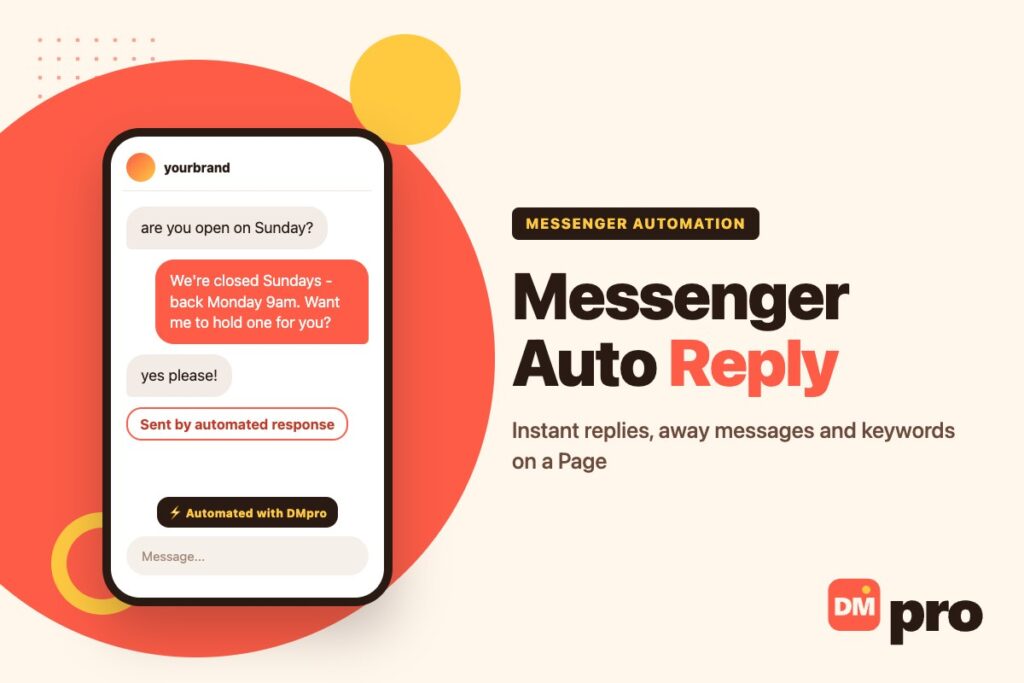
A Facebook Page can answer messages on its own: a greeting to anyone writing for the first time, an away message when you are closed, and replies triggered by particular words. All of it is free, all of it lives in one place, and most Pages have none of it switched on.
This guide covers the whole set – what each automation does, how to build it, which one actually sends when two could fire at the same time, and where Meta’s own tools stop being enough. Every rule below comes from Meta’s Business Help Center rather than from guesswork, because several of them are unintuitive.
One thing to settle first: this is for Pages. A personal Facebook profile cannot auto reply to Messenger, and no legitimate tool adds that. If you are running a business from a personal profile, converting to a Page is the fix.
Key Takeaways
Where Facebook Messenger Auto Replies Live
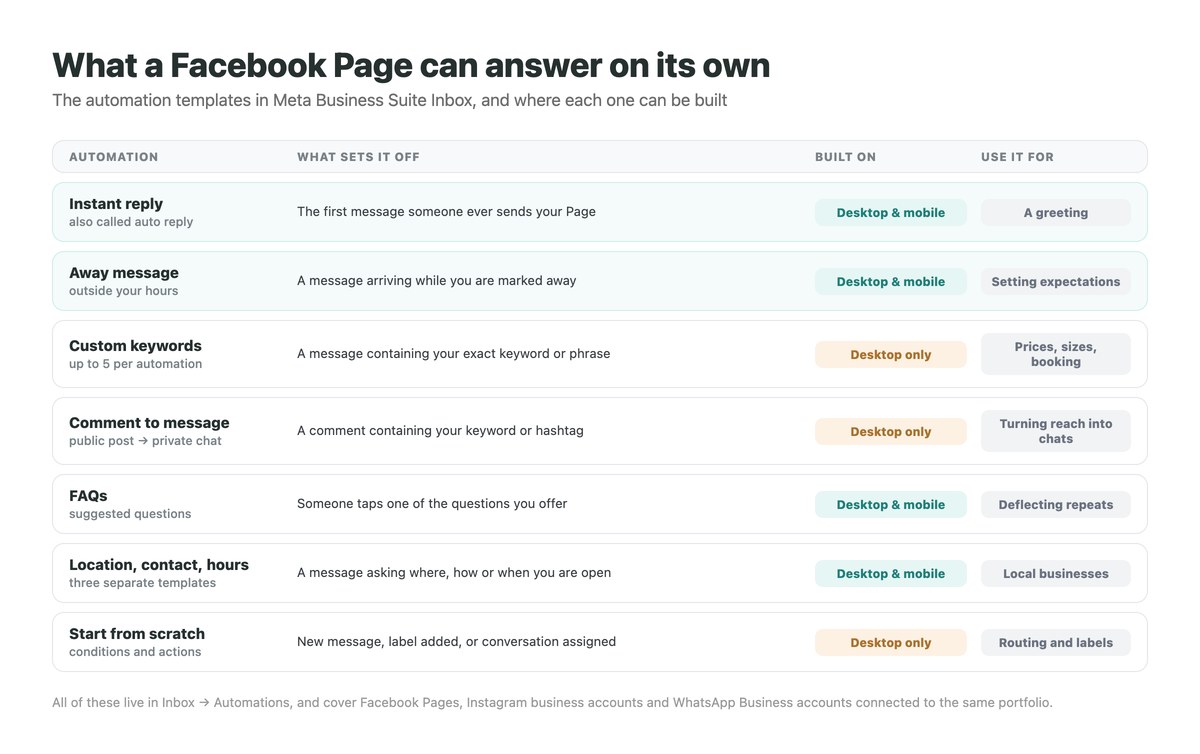
Page inbox automation is not in the Page settings and not in the Messenger app. It is in Meta Business Suite, under Inbox, in a tab called Automations – and what you build there can cover your Facebook Page, your Instagram business account and your WhatsApp Business account together, as long as they are in the same business portfolio.
Desktop and Mobile Are Not the Same
The mobile app builds the simple templates. Keyword automations, comment-to-message automations and anything built from scratch are desktop only. If a tutorial tells you to tap something that is not there, this is usually why – the mobile instructions cover a smaller set.
Why a Personal Profile Cannot Do This
Automations are a business messaging feature, tied to a Page or a professional account. A personal profile has no inbox automation surface and no supported API for one. Anything promising auto replies on a personal Facebook account is logging in as you, which is exactly how accounts get restricted.
One Restriction to Know About
Meta’s own setup page carries a standing notice that certain messaging metrics and organic messaging features for businesses are unavailable for messages delivered to and from Europe and Japan. If an automation you built refuses to fire for some customers, check where they are before assuming it is broken.
Set Up an Instant Reply and an Away Message
Start with these two. Between them they cover the first message from a stranger and every message that arrives while you are shut.
Open Inbox in Meta Business Suite
Check the business portfolio selector in the top left first. If you manage more than one business, automations you create land in whichever portfolio is selected – a common reason a rule seems to vanish.
Click Automations, then Create automation
You will see the template list: auto reply, away message, frequently asked questions, location, contact information, hours, custom keywords, comment to message, identify unanswered messages and assign admins.
Pick Auto reply for the greeting
This is the one Meta also calls instant reply. It answers the first message someone sends your Page – the Instagram equivalent is covered in our Instagram auto reply guide. Keep it to two lines: what you do, and what happens next. “Thanks for messaging Northside Bikes! We usually reply within the hour. What can we help with?”
Pick Away message for the hours you are closed
Say when you are back rather than apologising, and give one thing they can do meanwhile – our away message guide has templates by situation: “We’re closed until 9am tomorrow. Send your order number here and it’ll be waiting for us in the morning.”
Choose the channels
Tick the accounts the automation should cover. A Page-only away message and an Instagram-only one can say different things, which is usually right – the audiences arrive with different questions.
Turn it on, then test from another account
Automations can take a few minutes to appear, and you may need to refresh. Send a message from a personal account that has never contacted the Page, because the instant reply only fires on a genuinely first message.
Keyword Auto Replies, and Their Rules
This is where a Page stops sounding like an answering machine. A keyword automation replies to messages containing words you choose – prices, sizes, booking, delivery – with the actual answer.
How to Build One
In Automations, choose Custom keywords, name it, pick the channels, and enter the words. You get up to five keywords or phrases per automation, and the reply can carry photos, videos, links and buttons rather than plain text.
The Four Rules That Catch People Out
Keywords are case-sensitive
Meta states that keywords match exactly, so an automation set to “Price” will not answer someone who typed “price”. Add the variants you actually receive, lower case first.
Five per automation, and no reuse
The same keyword or phrase can only be used in one keyword automation. Build one automation per topic rather than trying to cover everything in a single rule.
There is a 15-minute delay
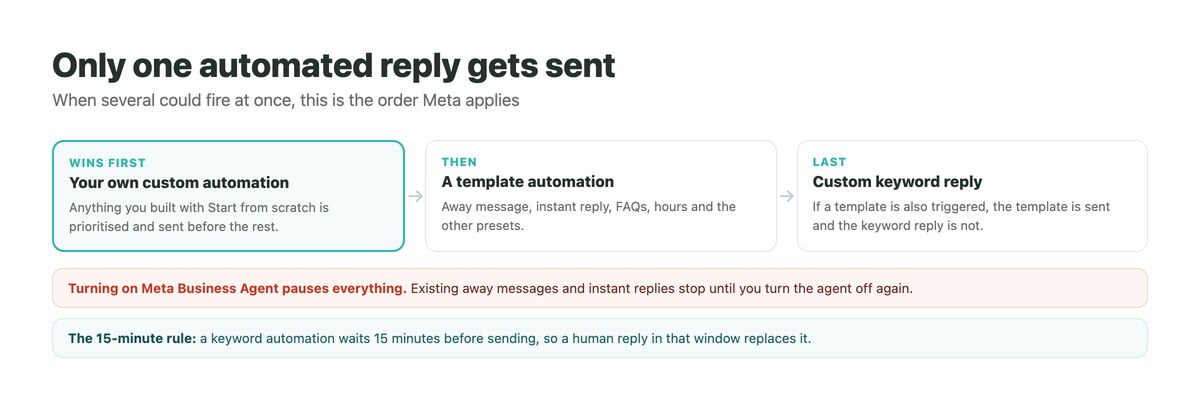
A keyword automation sends 15 minutes after the message unless you reply personally first. That is deliberate – it protects you from answering a real conversation with a canned line – but it means keyword replies are not instant.
Templates outrank keywords
If a keyword rule and a template such as your away message are both triggered, Meta sends the template and suppresses the keyword reply.
Comment to Message
The other half of the same idea: a reply sent privately when someone comments a particular word or hashtag on a post. It is how a post with reach becomes a list of conversations, and it is also desktop-only. We cover the Instagram version of this in detail in our comment-to-DM guide.
Building Your Own Rule From Scratch
Beyond the templates, Business Suite lets you assemble an automation out of conditions and actions – and Meta notes that these custom automations are prioritised over the rest and sent first.
The Conditions You Can Start From
New message received
The general-purpose trigger, which you then narrow with further conditions.
Label is added
Useful when your team tags conversations – a “refund” label can fire an acknowledgement automatically.
Message is assigned
Fires when a conversation lands with a person, which is how you send “Maria will take it from here” without anyone typing it.
The Actions Worth Combining
A rule can send a message, add labels, mark a conversation as followed up or done, and assign it to a person – in combination. Saved replies you send by hand are a separate tool, covered in our quick replies guide. That is the difference between a canned reply and a small workflow: acknowledge, label, route, all in one step.
Assign Admins and Unanswered Messages
Two templates quietly worth more than the rest for a team: Assign admins distributes new conversations automatically, and Identify unanswered messages surfaces the ones nobody replied to. Most Pages lose more sales to a missed message than to a badly worded one.
What to Write in Each Automation
Formats that work, in the order most Pages should build them.
| Automation | What to say | Avoid |
|---|---|---|
| Instant reply | Who you are, your usual reply time, one question back | A wall of links |
| Away message | When you are back, and one thing to send meanwhile | Apologising twice |
| Price keyword | The actual price and what it includes, then a question | “DM us for prices” – they just did |
| Booking keyword | The link, plus what to have ready before clicking | Sending a calendar with no context |
| Comment to message | Deliver what the post promised, then qualify | Asking them to comment again |
| FAQs | The four questions you answer daily, in their words | Corporate phrasing nobody searches for |
A practical detail: automated messages are labelled as such in the conversation, so there is no point writing them as though a person typed them. Be clearly automatic, and be useful.
Where Meta’s Built-In Tools Run Out
Business Suite automations are genuinely good for a Page that receives a few messages a day. Three limits tend to arrive at once.
No Branching, No Memory
A template sends one message. It cannot ask a question, wait for the answer, and route the conversation based on it – so every enquiry still ends up being sorted by hand.
Keywords Are Literal
Exact, case-sensitive matching means real customers miss your rules constantly. There is no “contains” or fuzzy mode, so you end up maintaining lists of spellings.
One Business Suite, Not One Inbox
Facebook, Instagram and WhatsApp share the automations, but a customer who messages your Page today and your Instagram next week is still two conversations to you. The same gap shows up on every channel – see our WhatsApp automation guide and the wider DM marketing playbook.
What a platform adds
DMpro connects through the same official APIs and adds the parts Business Suite does not have: word, contains and exact matching, buttons that branch, wait-for-reply steps that capture an email or an order number, and one thread per person across channels.
What it does not change
The rules above are Meta’s, not the tool’s. Nothing can auto reply from a personal profile, and nothing can message someone who has not written to you first.
When to switch
When you are maintaining keyword spellings, or when the reply needs to depend on the answer to a question – our guide to the Messenger chatbot layer covers what that actually requires, and what changed in 2026. Until then, Business Suite is enough – and free.
If Your Automation Is Not Firing
Four checks, in the order that resolves the most cases.
The Quick Four
Wrong portfolio
The automation exists, but on a different business portfolio from the Page you are testing.
Not a first message
Instant reply only fires on a first-ever message. Test from an account with no history with the Page.
Business Agent is on
It pauses existing away messages and instant replies until you turn it off.
Keyword case
Exact match includes capital letters. Add the lower-case variant.
Still Nothing
Check whether the person is in a region covered by the Europe and Japan restrictions, then check the toggle under Status on the Automations list – an automation can exist, be correct, and simply be switched off. Our guide to automation not working goes through the same diagnosis for Instagram, where the layers are identical.
When One Canned Reply Is Not an Answer
Instant replies and away messages buy you time. They do not qualify anyone, and they cannot tell a price question from a complaint. DMpro picks up where they stop: keyword matching that forgives spelling, buttons that let the person choose what they need, and a step that waits for their reply and stores it.
It runs on the same official Meta connections you already use for Messenger and Instagram, adds TikTok, WhatsApp and Telegram beside them, and keeps every conversation in one inbox. The first 250 conversations each month are free.
- Word, contains and exact keyword matching
- Buttons that send people down different paths
- A step that waits for a reply and keeps the answer
- Messenger, Instagram, WhatsApp, TikTok and Telegram
- One thread per person, whichever channel they use
- Handles the follow-up question, not just the first reply
- Official API connection, same as Business Suite
- Free for the first 250 conversations a month
- It cannot reply from a personal Facebook profile – nothing can
- It still only answers people who message you first
Conclusion
Set the two templates today: an instant reply that says who you are and how fast you answer, and an away message that says when you are back. That alone stops a Page looking abandoned, and it takes about five minutes.
Then add keyword automations for the three questions you answer every day, remembering that they are desktop-only, case-sensitive and delayed by fifteen minutes. When the answers start needing a question of their own, that is the point to move up to a proper flow.
Keyword replies, buttons and follow-up questions across Messenger, Instagram and WhatsApp – free for 250 conversations a month.
Start free with DMpro