
Open your Instagram messages and the chats are in an order you did not choose. Some days it looks obvious; other days a chat you were expecting has vanished, or one keeps sitting at the top no matter what. People search for what that order means – usually assuming there is a secret ranking behind it.
For the inbox itself, the explanation is simpler and more useful than a secret algorithm. The order comes from a few things you can see and control: pinned chats, the latest activity in each conversation, and the folders and filters that decide which chats are in the list at all.
This guide covers how the inbox is ordered, why it changes, and how to take control of it – and where the other list people mean, the suggested list, is different. For businesses, the inbox is also the front line of DM marketing, so its order matters more than it seems.
Key Takeaways
Two Different Lists Both Called DM Order
When people search for Instagram DM order, they mean one of two lists. The first is the inbox: the list of conversations you see when you open Direct. The second is the suggested list: the accounts Instagram offers when you tap share on a post or start a new message.
They are separate lists with separate logic. The inbox is about where your existing conversations sit. The suggested list is Instagram guessing who you might want to message next, and it is the one people read meaning into. That list is covered in depth in our guide to the Instagram DM suggested list.
It is worth knowing what Meta does and does not explain. Its Transparency Center publishes how ranking works for Instagram’s Feed, Stories, Explore, Reels, Search, suggested accounts, notifications and comments – but there is no explainer for Direct. Anyone claiming to know the precise weights behind your inbox is guessing.
How the Inbox List Is Ordered
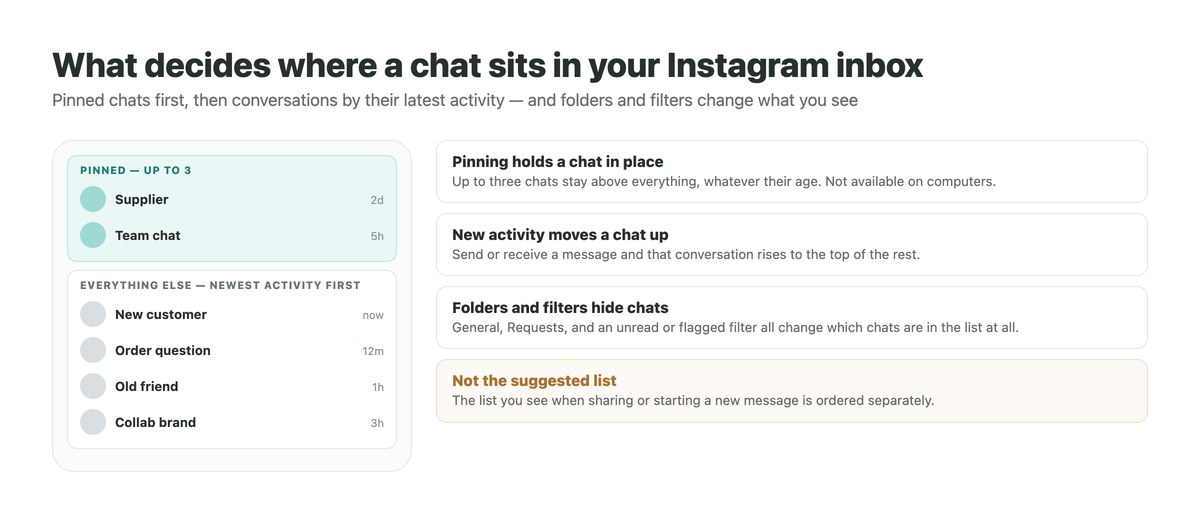
In everyday use the inbox follows activity. When a message is sent or received in a conversation, that conversation moves to the top of the list, and the rest shuffle down. The chat you talked in most recently is first; the one that has been quiet longest is at the bottom.
Pinned chats are the exception. Meta introduced pinning in its March 2024 Direct update, allowing up to three group or one-to-one chats to be pinned. They sit above everything else regardless of how old their last message is – which is why a chat can seem stuck at the top.
That is most of it. What makes the order feel unpredictable is not the sorting but everything that changes which chats are in the list in the first place: folders, filters and requests.
Why Your DM Order Looks Different
Most “my DM order is messed up” moments match one of these.
| What you see | Likely reason |
|---|---|
| A chat stays at the top no matter what | It is pinned – up to three chats can be |
| Only some chats are showing | An unread or flagged filter is switched on |
| A conversation has disappeared | It was moved to General, or it is in Requests |
| Someone’s messages suddenly land in Primary | You replied to or accepted their request |
| Requests are in a different order | Top requests sorts them by important accounts |
| The order differs on a computer | Pinning and mark as unread are not available on computers |
| An expected message never appears | It may be in hidden requests |
Taking Control of the Order
You cannot change how Instagram sorts the list, but you can decide what is at the top and what is in it.
Pin the chats that matter
Up to three, in the mobile app. Pinned chats stay above everything else.
Move the rest to General
On professional accounts, swipe chats you want to return to later into General so Primary only holds live conversations.
Use filters, then switch them off
The filter icon beside the search bar shows unread or flagged chats. Remember to clear it afterwards.
Flag or mark as unread
Instead of relying on position, flag the chats you need to follow up or mark them unread.
Deal with requests
Accept or reply to the requests you want, so future messages from those people go straight to Primary.
Use bulk actions for clean-ups
The list icon at the top right of the professional inbox lets you act on several chats at once.
Primary, General and Requests on Professional Accounts
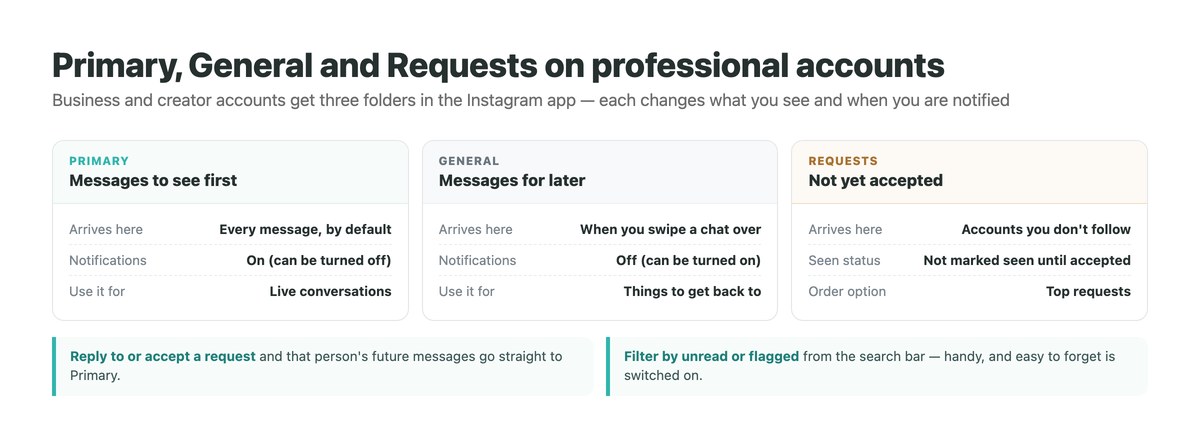
Business and creator accounts get an inbox with three folders in the Instagram app, as Instagram’s help centre describes. Primary is for messages you want to see first, and every message lands there by default, with notifications on. General is for messages you want to get back to later, with notifications off by default. Requests holds messages from accounts you do not follow.
This is where most order confusion comes from on business accounts. A chat you swiped into General is no longer in your Primary list at all, so it looks as if it has vanished. And because General notifications are off by default, new messages there arrive silently.
The notification settings for both folders can be changed, so the split can match how you actually work.
Message Requests Have Their Own Order
Requests are messages from accounts you do not follow, and they sit apart from the main list. Instagram’s help centre notes that request messages are not marked as seen until you accept them, and that tapping All requests lets you switch to Top requests, which organises them by important accounts.
Requests can also hold hidden requests – messages that may be offensive, unwanted or spam, or that match your Hidden Words preferences. A message you were expecting from a new customer may be sitting there rather than in your main list.
Once you reply to or accept a request, that person’s future messages go directly to Primary, which is why a conversation can suddenly appear there. The full picture is in our guide to Instagram message requests.
Inbox Tools by Device
Some of the tools that control the order only exist in the mobile app, which is why the inbox can look different on a computer.
| Tool | Mobile app | Computer |
|---|---|---|
| Pin a chat to the top | Yes, up to three | No |
| Mark a chat as unread | Yes | No |
| Primary and General folders | Yes, on professional accounts | Not described for computers |
| Filter by unread or flagged | Yes, on professional accounts | Not described for computers |
When the Order Matters for a Business
For a personal account, a shuffled inbox is a mild annoyance. For a business, the order is effectively the to-do list, and it is a poor one: the newest message is not always the most important, and a customer who wrote yesterday slides down the list every time someone else messages.
The fix is to stop relying on position. Pin the handful of chats that need to stay visible, flag or mark unread the ones that need an answer, use General as a deliberate later pile, and answer common questions with saved replies so the list never grows long in the first place.
When several people answer the same account, position becomes even less reliable, because one person’s reply moves a chat for everyone. That is the point where a shared inbox with assignment helps – the same problem covered in our guide to a WhatsApp team inbox.
An Inbox Ordered by What Needs Answering
Instagram’s inbox is sorted for chatting, not for selling. DMpro’s Conversations inbox groups every automated thread by person across Instagram, TikTok, WhatsApp, Messenger and Telegram, with lists you create – Hot leads, Orders, Needs a human – so a conversation’s place does not depend on who wrote last.
Replies can be sent by hand from the same screen, message templates keep wording consistent, and batch send lets you follow up with a whole list at once within each platform’s messaging window. Updates arrive in real time, and on Pro a shared inbox with assignments shows who owns each conversation.
Because DMpro answers the routine questions itself, most chats never need to be found in the list at all.
Stop Managing the Inbox by Its Order
An inbox sorted by latest activity is fine for chatting with friends. For a business it means the next customer always pushes the last one down, and anything not answered quickly drifts out of sight.
DMpro answers routine questions as they arrive and keeps the rest in a Conversations inbox organised by lists and owners rather than by time.
- Conversations inbox across six channels
- Lists to group threads by status
- Message templates and batch send
- Shared inbox with assignments on Pro
- Real-time updates as messages arrive
- Fewer chats sliding down unanswered
- Clear ownership when several people answer
- The same answer quality at any hour
- Instagram’s own inbox order stays as Instagram sets it
Conclusion
Instagram’s DM order is less mysterious than it looks. Up to three pinned chats sit at the top, and everything else follows the latest activity in each conversation.
What makes it feel unpredictable is what decides whether a chat is in the list at all: the Primary, General and Requests folders on professional accounts, an unread or flagged filter left on, hidden requests, and features that exist only in the mobile app.
The suggested list you see when sharing is a different list with its own logic – and Meta publishes no ranking explainer for either, so treat any precise formula with suspicion.
One inbox for every channel – free for 250 conversations a month.
See how it works